Approve a registration
When a parent registers a player, the registration waits in your queue. When you approve it, the player joins the team and the parent gets an email. The screen calls this Confirm registration.
Before you start
You need the Enter teams into seasons and approve registrations permission. The club owner can give it to you.
You can approve a registration when it shows Ready to confirm. If it shows another status, read the questions at the end of this page.
Approve one registration
Select Registrations in the menu, then select Registration queue.
Find the registration. Type a name or a team in Search, or select a status above the list, for example Ready to confirm.
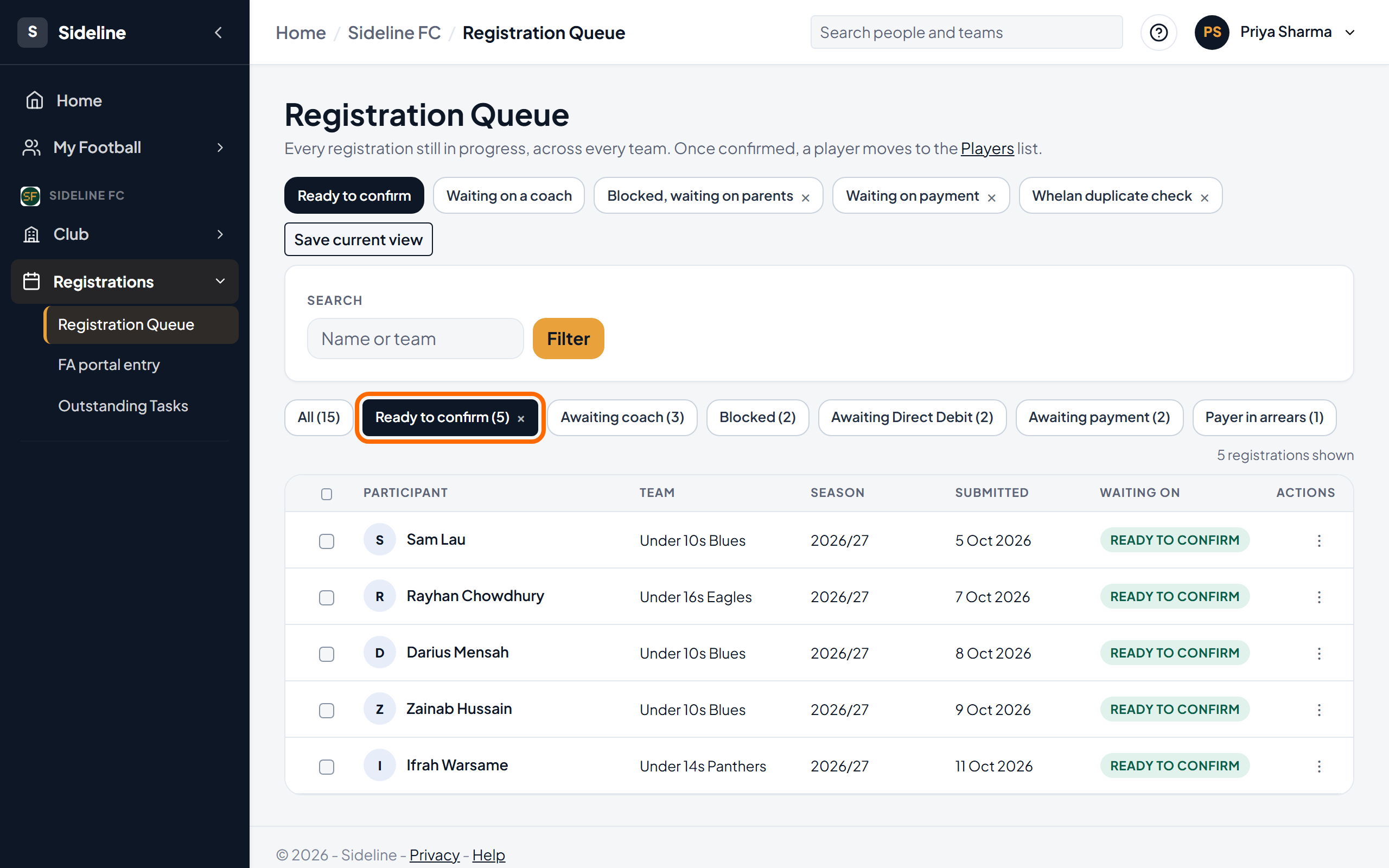
Check the Waiting on column. It must show Ready to confirm.
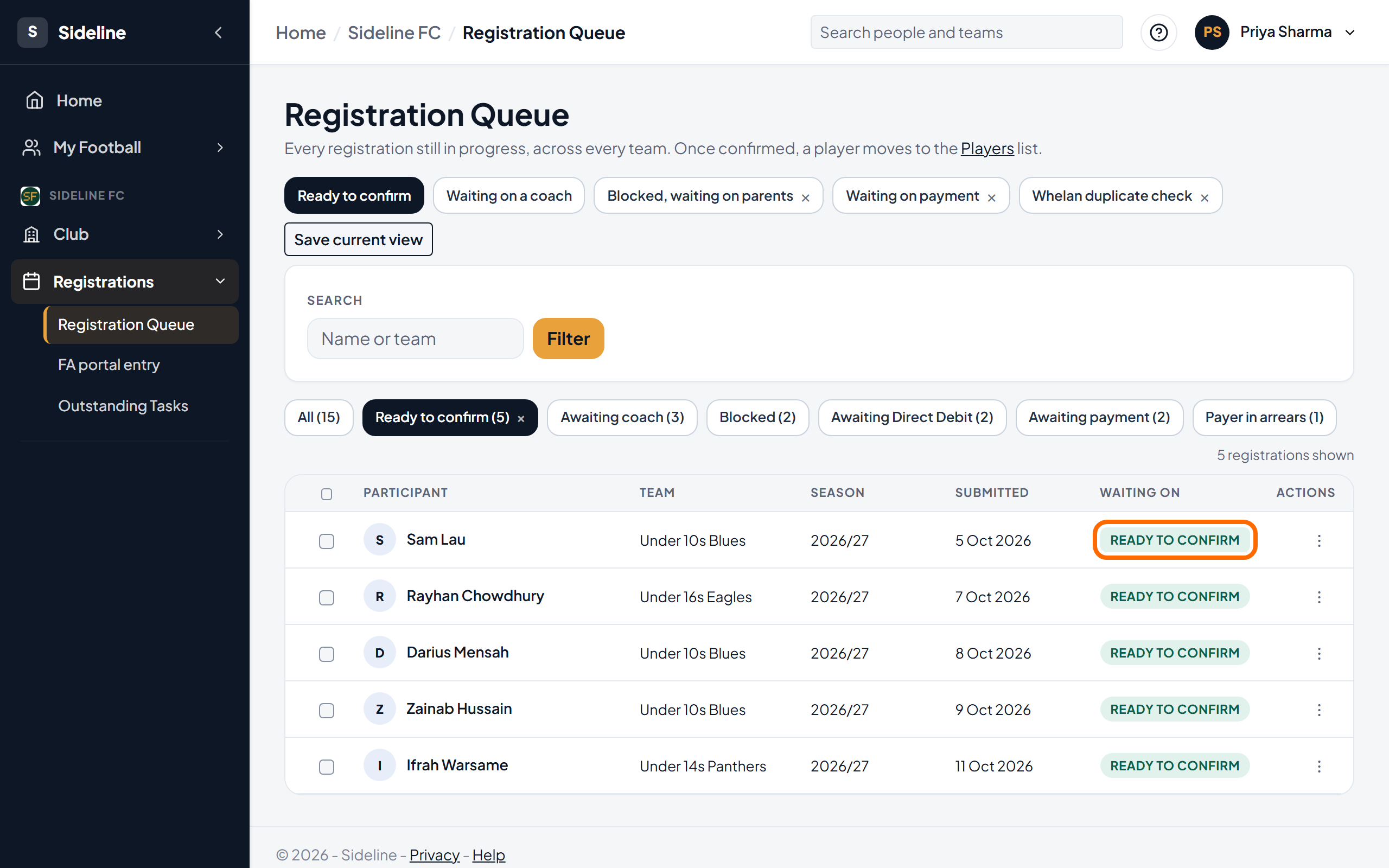
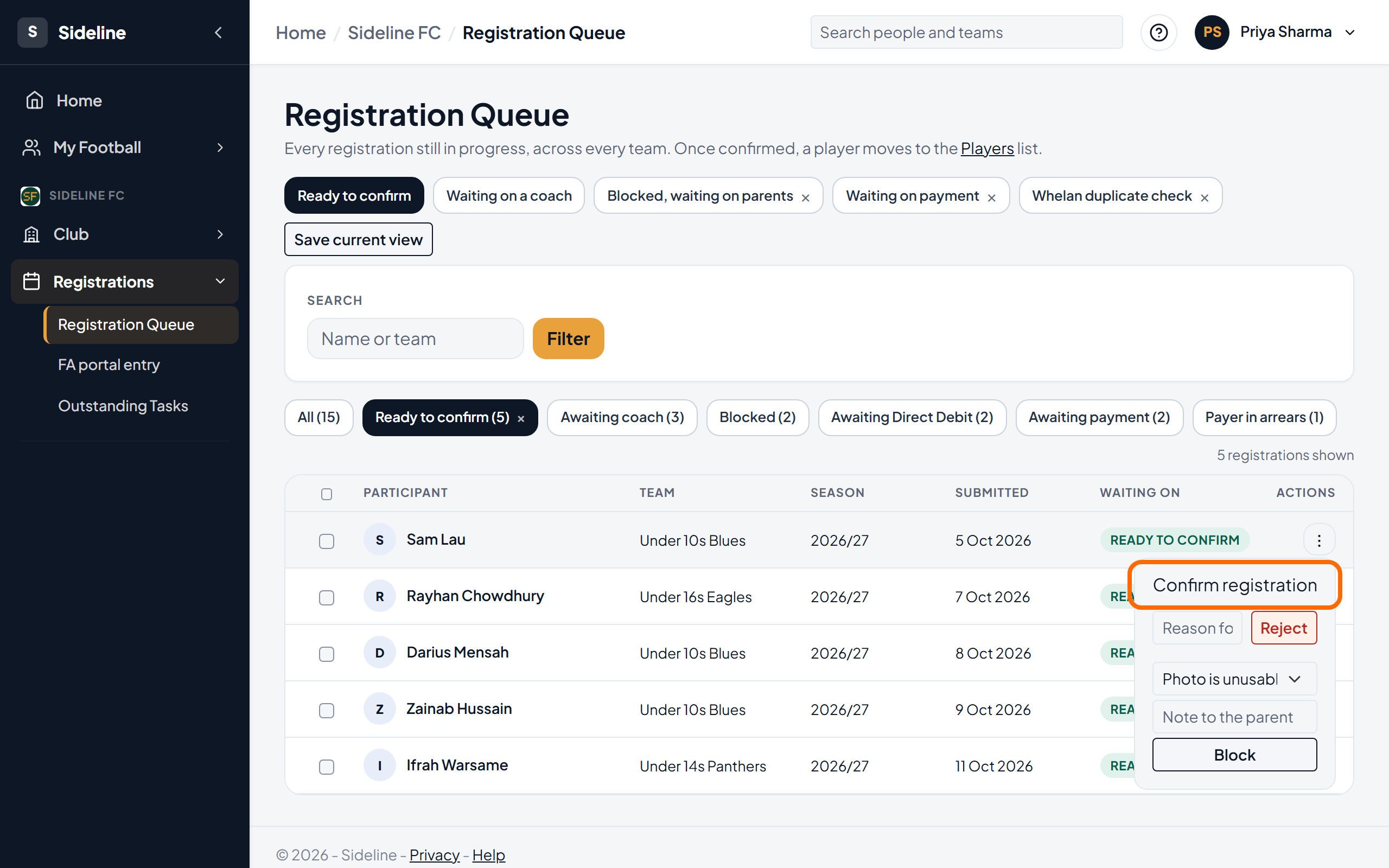
Select the three dots at the end of the row.
Select Confirm registration.
The registration leaves the queue and the player shows on the Players list. The parent gets an email with the result.
Approve many registrations at one time
Tick the box at the start of each row you want. Tick the box in the grey title row to tick every row shown.
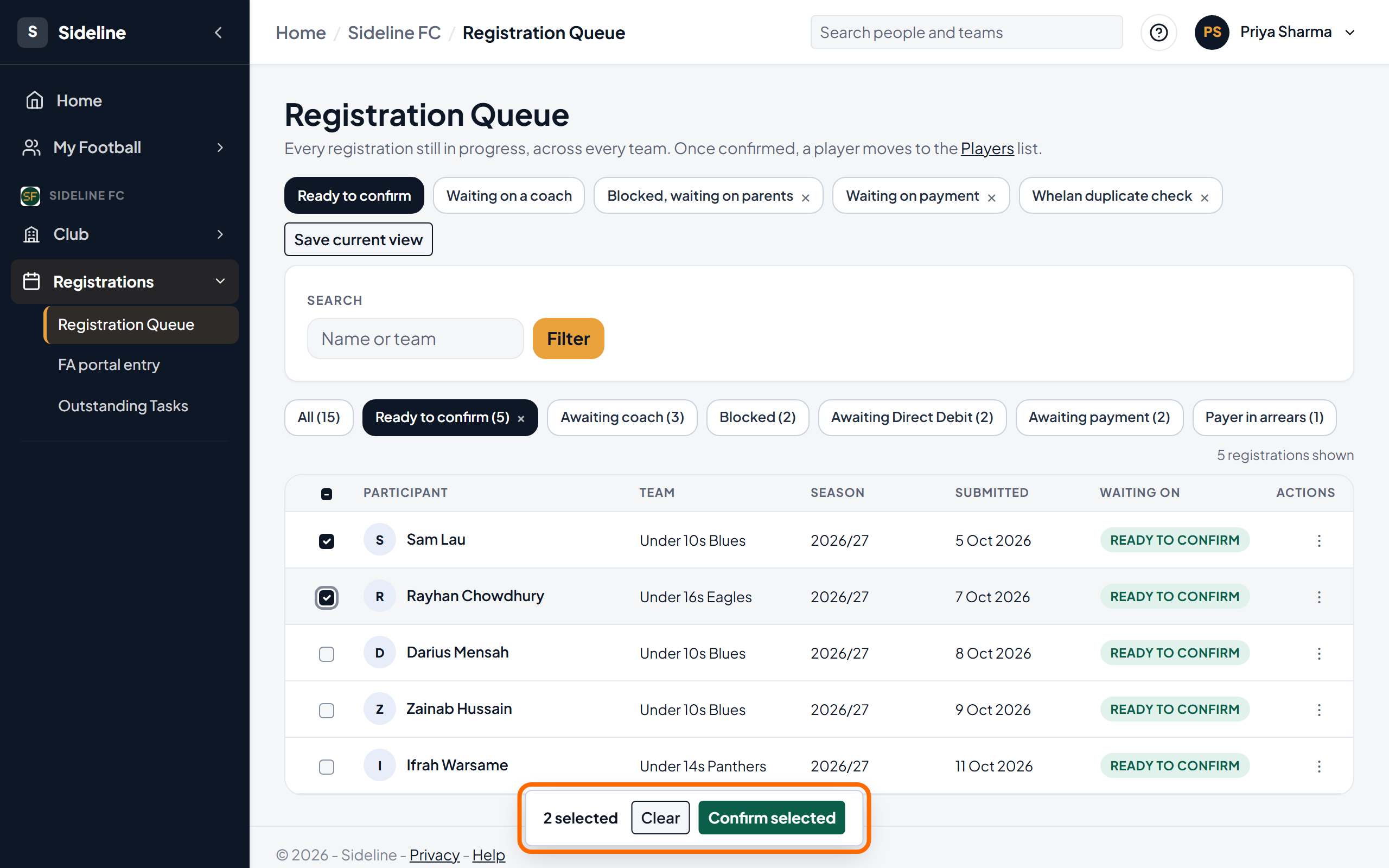
Select Confirm selected in the bar that appears.
Read the question, then select Yes, confirm.
The screen shows a summary of the registrations it confirmed and the ones it refused.
Turn down a registration
- Select the three dots at the end of the row.
- Type your reason in the Reason for rejecting box.
- Select Reject.
Hold a registration while the parent fixes something
Use this when a photo or a document is not good enough. The registration keeps its place in the checks, so you can carry on later.
- Select the three dots at the end of the row.
- Choose the problem: Photo is unusable, ID does not match or Other.
- Type a message in the Note to the parent. Say what the parent must do next.
- Select Block.
The parent gets an email with your note and a link to send a new photo or document. When the parent sends it, the block clears and you can check the registration again.
Common questions
Why can I not select Confirm registration?
The registration is not ready. The Waiting on column says why:
- Awaiting coach: a coach must endorse the registration first.
- Awaiting payment: the family has not paid the fee yet.
- Awaiting Direct Debit: the family has not set up the Direct Debit yet.
- Payer in arrears: the family owes the club money from before. A treasurer clears this.
- Blocked: you or another official blocked the registration. Select Unblock in the three dots menu when the problem is solved.
What does Awaiting coach mean?
This team asks a coach to check each registration before the club official does. The registration waits until a coach selects Endorse. If a coach does not act, you can select Endorse in the three dots menu instead.
Each team has its own setting. To change it, edit the team and choose under Who approves registrations. If you choose Secretary approves alone, registrations that wait for a coach come to you at once.
What if the parent has not paid?
You cannot approve the registration until the family pays this season's fee, unless the fee schedule is pay as you go. The status shows Awaiting payment until then.
Where can I see the player's photo and proof of identity?
Select Registrations in the menu, then FA Club Portal entry. Select Open beside the player. The page shows the photo and the proof of identity. It lists the players who are ready for you.
In the registration queue, the three dots menu on a row also has Download photo and Download proof of identity.
How do I get the photos for the FA Club Portal?
- In the registration queue, select the players.
- Select Download photos and ID for the FA Club Portal.
You get one zip file. Each file has the name of the player and their date of birth, for example Smith_Jack_14-03-2015.jpg. A proof of identity ends in _ID. Upload each file to the player on the FA Club Portal.
How do I record that a player is registered on the FA Club Portal?
Use FA Club Portal entry. When you select Tick off, Sideline records that the player is registered on the FA Club Portal, with the date and your name. The player's record shows it under FA Club Portal.
If you confirmed the registration from the queue, open the player in Players and select Mark as registered on the FA Club Portal.