Install Sideline on your phone
When you install Sideline, it opens from an icon on your home screen, like any other app.
Before you start
Use Safari on an iPhone, or Chrome on an Android phone. Open Sideline at the address your club gave you. You sign in again the first time you open the installed app.
Install on an iPhone
Open Sideline in Safari. A box at the top of the home screen reminds you of the next steps.
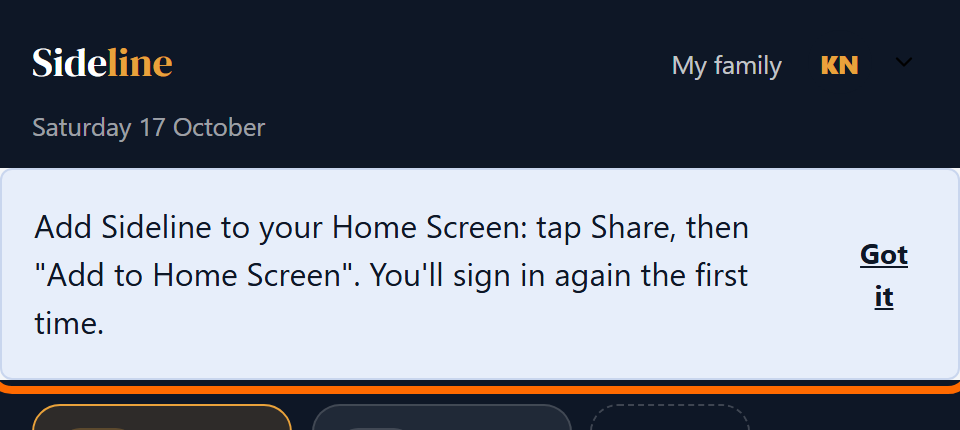
Tap the Share button. It is a square with an arrow pointing up.
Scroll down and tap Add to Home Screen.
Tap Add.
The Sideline icon is now on your home screen.
Install on an Android phone
Open Sideline in Chrome.
Tap Install in the banner at the top of the screen.
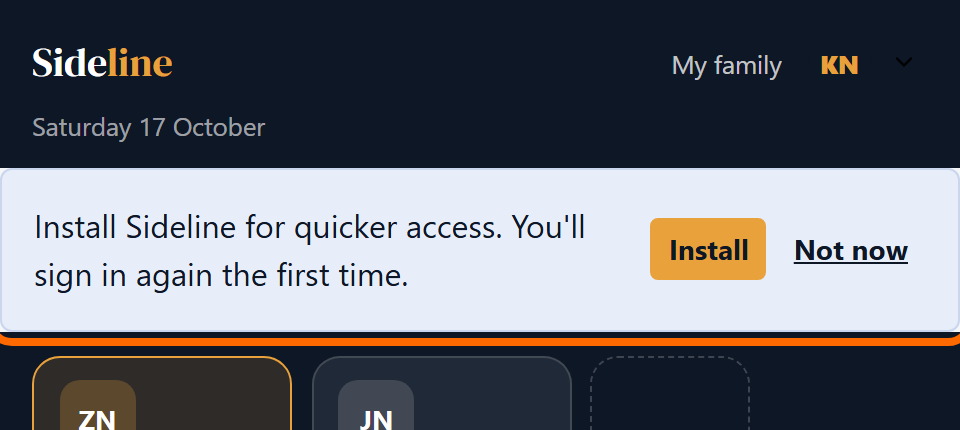
Tap Install again to confirm.
The Sideline icon is now on your home screen. If you do not see the banner, tap the three dots at the top right of Chrome, then tap Install app or Add to Home screen.
Common questions
Why do I have to sign in again?
The installed app keeps its own sign-in, separate from your browser. Sign in once in the app. If you sign out in your browser, you stay signed in to the app.
I tapped Not now on the banner. How do I get it back?
On an iPhone, use the Share button as above. On an Android phone, use the three dots menu in Chrome as above.
How do I remove Sideline from my phone?
Touch and hold the Sideline icon, then choose the option to remove it. Your account and your club's information are not deleted.